The entry experience is the first impression your attendees have of the event itself. If the line moves quickly and the process feels painless, people arrive in a good mood. If they stand outside for 25 minutes in the cold while staff fumbles with a tablet, you've already started on the wrong foot.
Mobile scanning has replaced paper lists and printed tickets at most events over the past few years, but "going digital" doesn't automatically mean things go smoothly. The setup matters. Here's what we've seen work.
How many scanners do you actually need?
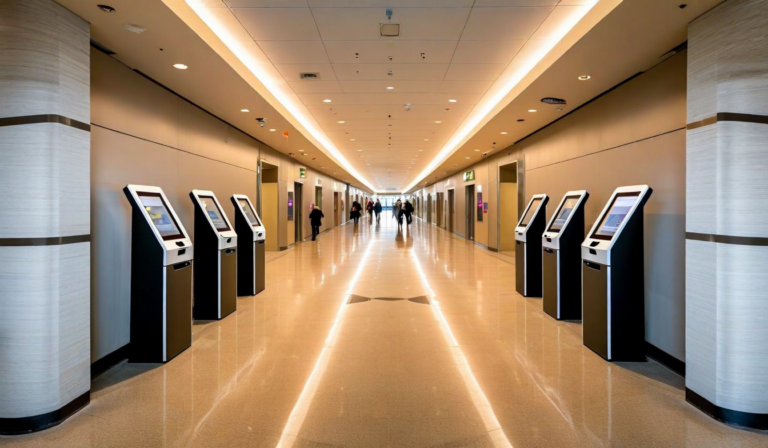
The number that gets thrown around most is one scanning station per 250–300 attendees per hour. That's a reasonable baseline, but it assumes a few things: attendees arrive roughly evenly throughout the entry window, scanners are set up correctly, and staff have done at least one practice run.
In reality, entry clusters. At a concert with doors at 7pm, roughly 60–70% of attendees will arrive in the 30 minutes before showtime. That's the window that breaks poorly planned entry setups.
For a 1,000-person event with a 7pm start, we'd recommend:
- 4 scanning stations minimum
- 1 dedicated lane for accessibility or late pickups
- 1 supervisor who can float and troubleshoot (not scanning)
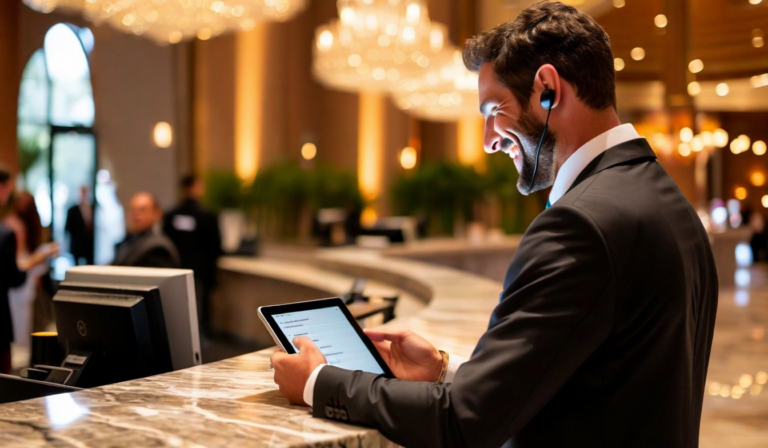
The supervisor role is underestimated. Having someone who isn't occupied with a scanner means edge cases get resolved without holding up a queue.
The offline mode conversation
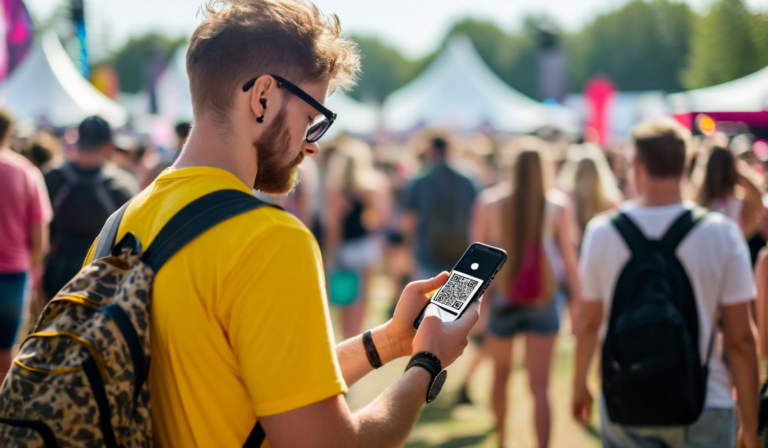
Every organizer who has run an outdoor festival or an event in an old venue knows this problem: connectivity is unreliable. The scanning app that works perfectly in the office can hang or fail when 800 people are crowding a gate with their phones out.
Good scanning software handles this by caching the valid ticket list locally on the device. Scans get validated against the cached list and synced when connectivity returns. The critical thing to check before your event is whether your scanning app actually supports offline mode — not just in theory, but in the version you're running.
"Fliko cut our pre-event setup from two days to two hours. The scanning app worked flawlessly at the door." — Maciej W., Music Festival Director, Krakow
Test offline mode explicitly. Turn off Wi-Fi and cellular on the device, scan a test ticket, and confirm it validates correctly. If it doesn't, you need to know before the event — not during it.
Staff briefing: what to actually tell them
Most scanning problems on event day are people problems, not technology problems. The tech works; the staff hasn't been told what to do when it doesn't.
Your pre-event briefing should cover:
- What a valid scan looks like — green screen, check mark, name displayed. Don't assume this is obvious.
- What to do with an invalid scan — red screen doesn't always mean fraud. It can mean a duplicate, an expired ticket, or a scan error. The response is to step the person aside calmly, not to cause a scene.
- Who to call for problems — there should be one person with full admin access who can look up an order and resolve it. Make sure every scanner knows how to reach that person.
- Battery backup plan — phone batteries die during 4-hour events. Either have charging packs available or have a backup device per station.
Device setup before the day
Don't set up scanning devices on the morning of the event. Do it the night before. That gives you time to catch issues without pressure.
| Check | When | Why |
|---|---|---|
| App installed and logged in | Night before | Avoids last-minute download delays |
| Ticket list synced | Night before + morning of | Catches late purchases if sync is manual |
| Offline mode test | Night before | No surprise on-site |
| Battery fully charged | Morning of | Full run time from start |
| Screen brightness | Morning of | High brightness for outdoor use |
Handling ticket transfer and last-minute changes
People transfer tickets. They buy tickets as gifts, then the recipient can't make it. The original buyer wants to pass it on. Whatever your policy on transfers, your scanning setup needs to reflect it.
If transfers are allowed and the buyer transfers to someone else before the event, the new owner's QR code should work and the original should invalidate. If your platform doesn't handle this cleanly, you'll get disputes at the door that no amount of good scanning setup can fix.
Check this specifically. It's one of the most common sources of entry problems we see, and it's entirely preventable if you understand how your platform handles ticket ownership.
After the event: what the scan data tells you
Scan data is valuable beyond the entry process itself. When you look at scan timestamps after the event, you can see exactly when attendance peaked, how long it took to clear the queue, and whether any tickets were never scanned (no-shows vs. tickets never picked up).
If you had three entry gates and two of them were backed up while one was idle, that shows in the data. You can use that to plan your next event's gate layout more effectively. The entry process isn't just a logistical task — it's a dataset that helps you improve.